How to Print PowerPoint with Notes (Step-by-Step Guide for Windows & Mac)
Printing PowerPoint slides with notes is a common need—especially for presentations, lectures, or meetings. If your printer isn’t printing your notes, it’s usually because of incorrect print settings, not a technical failure. The fix is simple: you need to select the “Notes Pages” layout before printing.
Why Is Printer not printing
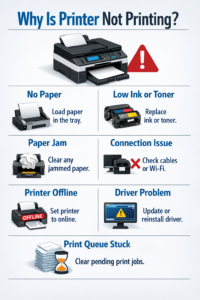
This guide will walk you through exactly how to print PowerPoint with notes on both Windows and Mac, along with troubleshooting tips, common mistakes, and practical advice to get it right every time.
Why Your Printer Isn’t Printing PowerPoint Notes
Before jumping into steps, here’s the most common issue:
PowerPoint defaults to printing slides only, not notes. Even if your notes are visible on screen, they won’t print unless you change the layout.
Other common reasons include:
- Wrong print layout selected
- Printer settings overriding PowerPoint settings
- Outdated printer drivers
- File formatting issues
Now let’s fix it step by step.
How to Print PowerPoint with Notes on Windows
Follow these steps if you’re using PowerPoint on a Windows PC:
Step 1: Open Your Presentation
- Launch PowerPoint
- Open the file you want to print
Step 2: Go to Print Menu
- Click File
- Select Print
Step 3: Change Print Layout
- Under Settings, click the dropdown that usually says Full Page Slides
- Select Notes Pages
This is the key step—without this, your notes won’t print.
Step 4: Preview Your Print
- Check the preview on the right
- You should see one slide per page with notes below
Step 5: Adjust Printer Settings
- Choose your printer
- Set paper size (A4 or Letter)
- Choose color or grayscale if needed
Step 6: Click Print
- Press Print to start
How to Print PowerPoint with Notes on Mac
If you’re using a Mac, the process is slightly different but just as simple:
Step 1: Open Your File
- Open PowerPoint
- Load your presentation
Step 2: Open Print Dialog
- Click File
- Select Print (or press Command + P)
Step 3: Expand Print Options
- Click Show Details (if not already expanded)
Step 4: Select Layout
- In the dropdown menu, find Layout or Print What
- Choose Notes
Step 5: Preview the Output
- Ensure notes appear under each slide
Step 6: Print
- Click Print
Tips for Printing Multiple Slides with Notes
Printing notes for large presentations can waste paper if not optimized. Here are practical tips:
Use Smaller Scaling
- Reduce size slightly (e.g., 90–95%) to fit content better
Print in Grayscale
- Saves ink while keeping notes readable
Adjust Notes Length
- Keep notes concise so they don’t overflow pages
Print Selected Slides Only
- Choose specific slides instead of printing all
Export to PDF First
- Save as PDF and review formatting before printing
Troubleshooting: When It Still Won’t Print
If your notes still aren’t printing, try these fixes:
1. Check Print Layout Again
Make sure Notes Pages (Windows) or Notes (Mac) is selected. This is the #1 issue.
2. Update Printer Drivers
Outdated drivers can cause printing problems. Update them via:
- Windows Device Manager
- Mac System Settings
3. Try a Different Printer
Test with another printer or save as PDF to isolate the issue.
4. Restart Everything
- Restart PowerPoint
- Restart your computer
- Turn printer off and on
5. Check Notes Section
Make sure notes actually exist under slides:
- Go to Normal View
- Confirm notes are typed in the notes pane
6. Save as PDF First
- File → Save As → PDF
- Then print the PDF version
Common Mistakes Users Make
Avoid these frequent errors:
Not Selecting “Notes Pages”
This is the most common mistake. Without it, notes won’t print.
Assuming Notes Are Automatic
PowerPoint doesn’t include notes by default—you must choose it manually.
Overloading Notes
Too much text can get cut off or look messy when printed.
Ignoring Print Preview
Always check preview before printing to avoid wasted paper.
Using Wrong Paper Size
Mismatch between PowerPoint and printer settings can distort layout.
FAQ: Printing PowerPoint with Notes
1. Why are my notes not showing when I print?
Because the print layout is set to “Full Page Slides.” Change it to Notes Pages.
2. Can I print multiple slides with notes on one page?
No, PowerPoint only allows one slide per page with notes. If you need multiple, you’ll need manual formatting.
3. How do I make notes bigger when printing?
Increase font size in the notes section or adjust scaling in print settings.
4. Can I print notes without slides?
Not directly. You would need to copy notes into another document like Word.
5. Why does my formatting look different when printed?
This usually happens due to:
- Different paper size
- Printer margins
- Font compatibility
Pro Tips for Better Results
- Keep notes under 5–7 lines per slide for clean printing
- Use bullet points instead of long paragraphs
- Print a test page before printing the full deck
- Use PDF preview to catch formatting issues
- Stick to standard fonts like Arial or Calibri
Conclusion
If your PowerPoint notes aren’t printing, the issue is almost always a simple settings mistake. Selecting Notes Pages (Windows) or Notes layout (Mac) solves the problem instantly.
By following the step-by-step instructions in this guide—and avoiding common mistakes—you can print clean, professional slides with notes every time. Always preview your print, keep notes concise, and use PDF when in doubt.
Once you understand the process, printing PowerPoint with notes becomes quick, reliable, and hassle-free.
