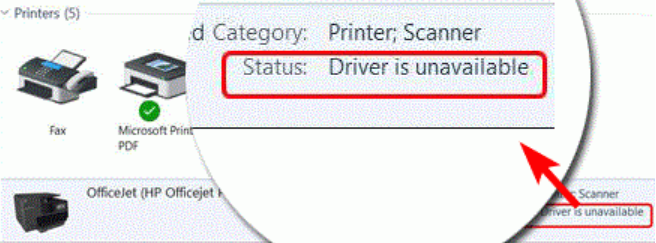
Seeing the message Printer Driver Is Unavailable can be frustrating, especially when you need to print an important document. This error usually means that Windows cannot communicate properly with the printer driver installed on your computer.
The problem may be caused by an outdated driver, corrupted software, an incompatible operating system, or a problem with the printer connection. Fortunately, there are several solutions you can try to restore your printer.
This guide explains what the “Printer Driver Is Unavailable” error means and how to fix it step by step.
What Does “Printer Driver Is Unavailable” Mean?
A printer driver is software that allows your computer to communicate with a printer. When Windows displays the message “Printer Driver Is Unavailable,” it usually means the operating system cannot find or properly use a compatible printer driver.
The printer may still appear in your device list, but you may be unable to print documents.
Common causes include:
- Outdated printer drivers
- Corrupted driver files
- Incompatible drivers
- Windows updates
- Incorrect printer installation
- Connection problems
- Driver conflicts
Why Does the Printer Driver Become Unavailable?
There are several reasons why a printer driver may stop working.
Outdated Printer Driver
An old driver may not be compatible with a newer version of Windows. Operating system updates can sometimes cause compatibility problems with older printer software.
Corrupted Driver Files
Driver files can become corrupted because of incomplete installations, software conflicts, or system errors.
Incompatible Driver
Installing a driver designed for a different printer model or operating system can cause the printer to become unavailable.
Windows Update Problems
A recent Windows update may change system components or remove compatibility with an older printer driver.
Incorrect Printer Setup
If the printer was not installed correctly, Windows may not be able to communicate with it properly.
How to Fix “Printer Driver Is Unavailable”
Try the following solutions one by one.
1. Restart the Printer and Computer
The simplest solution is to restart both the printer and computer.
Turn off the printer and unplug it for a few seconds. Then restart the computer and turn the printer back on.
Temporary communication errors can sometimes cause the printer driver to appear unavailable.
2. Check the Printer Connection
If you use a USB printer, check the USB cable and connection.
Try the following:
- Disconnect and reconnect the USB cable.
- Try another USB port.
- Check whether the printer is turned on.
- Try another compatible USB cable if necessary.
For wireless printers, make sure the printer and computer are connected to the correct network.
3. Run the Windows Printer Troubleshooter
Windows includes troubleshooting tools that can help identify printer problems.
To run the printer troubleshooter:
- Open Settings.
- Go to System.
- Select Troubleshoot.
- Open Other troubleshooters.
- Find the printer troubleshooter.
- Click Run.
The troubleshooter may detect problems with printer settings, connections, or drivers.
4. Update the Printer Driver
Updating the driver is one of the most effective ways to fix the “Printer Driver Is Unavailable” error.
You can try updating the driver through Device Manager:
- Right-click the Start button.
- Open Device Manager.
- Find your printer under the appropriate device category.
- Right-click the printer.
- Select Update driver.
- Choose the option to search for available drivers.
You can also download the latest compatible driver from the printer manufacturer’s official support website.
5. Download the Correct Driver Manually
If Windows cannot find a suitable driver automatically, download one manually.
Before downloading, check:
- Printer manufacturer
- Exact printer model
- Windows version
- 32-bit or 64-bit system architecture
Using the correct driver is important because a driver for another printer model may not work correctly.
6. Uninstall and Reinstall the Printer
Removing the printer and installing it again can resolve driver problems.
To remove a printer:
- Open Settings.
- Select Bluetooth & devices.
- Open Printers & scanners.
- Select your printer.
- Click Remove.
After removing the printer, restart your computer and install the printer again using the correct driver.
7. Remove Old Printer Drivers
Old or duplicate printer drivers can sometimes conflict with a new driver.
If you have several drivers installed for the same printer model, removing unnecessary software may help solve the problem.
After uninstalling old drivers, restart your computer and install the latest compatible driver.
8. Check Windows Update
A pending Windows update may contain compatibility improvements or fixes for printer problems.
To check for updates:
- Open Settings.
- Go to Windows Update.
- Click Check for updates.
- Install available updates.
- Restart your computer if required.
After updating Windows, check whether the printer driver is available again.
9. Restart the Print Spooler Service
The Print Spooler service manages print jobs in Windows. If the service is not running correctly, printer problems may occur.
To restart the Print Spooler:
- Press Windows + R.
- Type services.msc.
- Press Enter.
- Find Print Spooler.
- Right-click it.
- Select Restart.
After restarting the service, try printing again.
10. Use the Manufacturer’s Printer Software
Many printer manufacturers provide complete software packages that include drivers and additional utilities.
If the basic Windows driver does not work, installing the manufacturer’s full printer software package may help restore compatibility.
Make sure you download software designed for your exact printer model.
Printer Driver Is Unavailable on Windows 10
Windows 10 users may see this error after installing system updates or using an older printer.
Try updating the printer driver, removing the printer, and reinstalling the latest compatible software.
You should also check whether the printer manufacturer still provides driver support for Windows 10.
Printer Driver Is Unavailable on Windows 11
Windows 11 may have compatibility issues with older printer models.
If the error appears after upgrading to Windows 11, check whether a Windows 11-compatible driver is available for your printer.
If no dedicated driver is available, the manufacturer may provide an alternative compatible driver or software package.
How to Prevent Printer Driver Problems
You can reduce the chance of future driver problems by following these tips:
- Keep Windows updated.
- Download drivers from trusted sources.
- Use the correct driver for your printer model.
- Avoid installing drivers from unknown websites.
- Remove old drivers when replacing a printer.
- Keep printer software updated when necessary.
- Check printer connections regularly.
Frequently Asked Questions
What does “Printer Driver Is Unavailable” mean?
It means that Windows cannot properly find, use, or communicate with the printer driver installed on your computer.
How do I fix a printer driver that is unavailable?
Try restarting the printer and computer, checking the connection, updating the driver, uninstalling the printer, and reinstalling the correct driver.
Can Windows Update cause printer driver problems?
Yes. Some system updates may cause compatibility problems with older printer drivers.
Should I reinstall the printer driver?
Yes. Reinstalling the correct driver can often fix corrupted or incompatible driver problems.
Why does my printer work on another computer?
The other computer may have a different operating system or a compatible printer driver installed. Installing the correct driver on your computer may solve the problem.
Can I use a generic printer driver?
A generic driver may work for basic printing, but the manufacturer’s driver usually provides better compatibility and access to additional printer features.
Conclusion
The Printer Driver Is Unavailable error usually occurs when Windows cannot properly communicate with the printer driver. Outdated software, corrupted files, incompatible drivers, Windows updates, and connection problems are common causes.
To fix the problem, check the printer connection, update or reinstall the correct driver, remove old printer software, and use Windows troubleshooting tools when necessary.
Choosing the correct printer driver for your printer model and operating system is the most important step toward restoring reliable printing.
