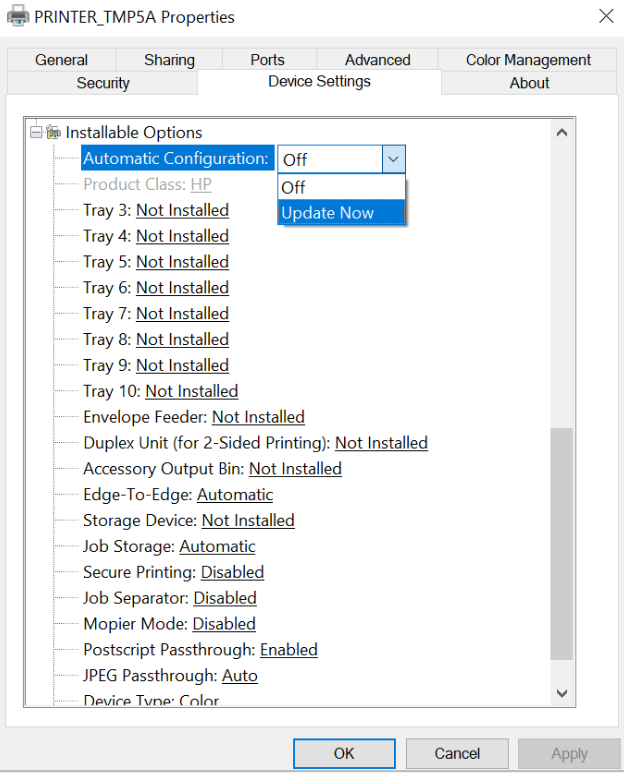
The HP Universal Printer Driver is a useful software solution designed to simplify printer management across many compatible HP LaserJet printer models. Instead of installing a separate driver for every supported printer, users can often use one universal driver package to connect and print from multiple HP devices.
This guide explains what the HP Universal Printer Driver is, how it works, how to install it, and how to troubleshoot common printing problems.
What Is the HP Universal Printer Driver?
The HP Universal Printer Driver, commonly known as the HP UPD, is a printer driver designed to support a wide range of compatible HP printers. It can help simplify printer deployment in homes, offices, schools, and business environments.
Depending on the supported printer and driver type, the HP Universal Printer Driver may provide access to features such as:
- Basic printing functions
- Paper size selection
- Print quality settings
- Duplex printing
- Paper tray selection
- Black-and-white printing
- Color printing on supported devices
- Printer configuration options
The available features depend on the specific printer model and the driver version installed.
Why Use an HP Universal Printer Driver?
Managing multiple printers can be difficult when every device requires a separate software package. A universal driver can simplify the installation process for supported HP printers.
Some potential benefits include:
- Easier printer deployment
- Reduced driver management
- Compatibility with multiple supported printer models
- Simplified office printer setup
- Access to common printing functions
- Easier replacement of compatible HP printers
However, not every HP printer supports the same universal driver. Always check compatibility before installation.
HP Universal Printer Driver Types
Different versions of the HP Universal Printer Driver may be available for different printing environments.
PCL Driver
PCL drivers are commonly used in office environments and are compatible with many applications. They can provide reliable printing performance for everyday documents.
PostScript Driver
PostScript drivers may be useful for professional graphics and applications that require PostScript support. Compatibility depends on the printer model.
Basic Universal Printing Support
Some environments may only require basic printing functionality. The available features depend on the printer and the installed driver package.
How to Download the HP Universal Printer Driver
Before downloading the driver, check your printer model and operating system.
The general process includes:
- Identify your HP printer model.
- Check your Windows operating system version.
- Find the compatible HP Universal Printer Driver.
- Review the supported printer list.
- Download the appropriate driver package.
- Save the installer to your computer.
Compatibility is important because the universal driver may not support every HP printer.
How to Install the HP Universal Printer Driver
After downloading the correct driver, follow these general installation steps.
Step 1: Prepare Your HP Printer
Turn on the printer and make sure it is connected to your computer or network.
The printer may be connected using:
- USB
- Ethernet
- Wi-Fi
- A shared network connection
For network installations, make sure the computer and printer can communicate with each other.
Step 2: Start the Installation
Open the downloaded driver installer and follow the instructions shown on the screen.
Depending on the driver package, you may need to select an installation mode.
Step 3: Select the Printer Connection
Choose the appropriate connection type. If you are installing a network printer, the setup program may search for available printers.
For a USB printer, connect the printer when instructed by the installation wizard.
Step 4: Select the HP Printer
Choose the correct printer from the available list. Verify that the selected printer matches the device you want to use.
Step 5: Complete the Installation
Finish the setup process and wait for the driver installation to complete. You can then print a test page to confirm that the printer is working properly.
How to Add an HP Printer Manually
Sometimes the automatic installation process does not detect the printer. In this situation, you may be able to add the printer manually through Windows printer settings.
You may need information such as:
- Printer IP address
- USB connection details
- Network name
- Printer model
- Driver location
Manual installation can be useful for printers connected to a business or office network.
Common HP Universal Printer Driver Problems
Although the universal driver is designed to simplify printer installation, problems can still occur.
HP Printer Driver Is Unavailable
A “Driver is unavailable” message may indicate that the driver is missing, damaged, outdated, or incompatible.
To troubleshoot the issue:
- Restart the computer and printer.
- Remove the existing printer.
- Uninstall old printer software.
- Download a compatible HP Universal Printer Driver.
- Install the driver again.
- Add the printer back to Windows.
HP Printer Is Not Detected
If the printer is not detected during installation, check the connection.
For USB printers, try another USB port or cable. For network printers, check the network connection and printer IP address.
You can also restart the printer and computer before trying again.
HP Printer Shows Offline
An HP printer may appear offline because of connection problems or incorrect printer settings.
Check whether:
- The printer is powered on.
- The printer is connected to the network.
- The correct printer is selected.
- The printer is not paused.
- Windows is not set to use the printer offline.
Printing Features Are Missing
If options such as duplex printing or paper tray selection are missing, the installed driver may not support all of the printer’s features.
You may need to install a model-specific driver instead of using a universal driver.
Print Jobs Are Stuck
Stuck print jobs may be caused by a problem with the Windows Print Spooler service or a communication issue with the printer.
Restarting the printer and clearing the print queue may help resolve the problem.
How to Update the HP Universal Printer Driver
Keeping the driver updated can help improve compatibility with newer operating systems and applications.
Before updating, check the current driver version and compare it with the latest compatible version available for your printer environment.
If the existing driver is corrupted, removing the old installation before installing the new version may provide better results.
How to Uninstall the HP Universal Printer Driver
If you no longer need the driver or want to perform a clean installation, you may remove the existing HP printer and associated driver software.
After uninstalling the old driver:
- Restart your computer.
- Download the correct driver.
- Install the new driver.
- Add the HP printer again.
- Print a test page.
A clean installation can help resolve persistent driver conflicts.
HP Universal Printer Driver Compatibility
The HP Universal Printer Driver is not compatible with every HP printer. Compatibility depends on the printer series, operating system, driver version, and available printer features.
Before installation, check:
- Your exact HP printer model
- Windows version
- Driver type
- Printer connection
- Required printer features
If the universal driver does not support a specific feature, a dedicated printer driver may be a better option.
Tips for Using the HP Universal Printer Driver
For a smoother installation and better performance:
- Check printer compatibility before downloading.
- Use the correct driver version.
- Remove outdated drivers when necessary.
- Verify network settings for network printers.
- Restart the computer after installation if required.
- Test the printer after completing setup.
- Use a model-specific driver when advanced features are unavailable.
Frequently Asked Questions
What is the HP Universal Printer Driver?
It is a driver package designed to support multiple compatible HP printers and simplify printer installation and management.
Can the HP Universal Printer Driver work with every HP printer?
No. Compatibility depends on the specific HP printer model and driver version.
Why is my HP printer not detected?
The problem may be caused by a connection issue, incorrect network settings, an incompatible driver, or a printer configuration problem.
Should I use a universal driver or a model-specific driver?
A universal driver can simplify installation, while a model-specific driver may provide more features for a particular printer.
How do I fix an HP printer driver error?
Try removing the existing printer, uninstalling the old driver, restarting your computer, and installing a compatible HP printer driver.
Conclusion
The HP Universal Printer Driver can make printer management easier by providing support for multiple compatible HP printer models. It is particularly useful for environments with several HP printers that need consistent driver management.
If you experience problems such as a missing driver, offline printer, failed installation, or missing printing features, check the printer compatibility and consider reinstalling the correct driver. Choosing the right driver for your HP printer and operating system is essential for reliable printing performance.
