How to Print PowerPoint with Notes (Step-by-Step Guide for Windows & Mac)
Printing PowerPoint slides with notes is simple once you know where to look. In short: open your presentation, go to Print settings, choose “Notes Pages” as the layout, and then print. This ensures each slide prints along with your speaker notes beneath it.
How To Print From Notes
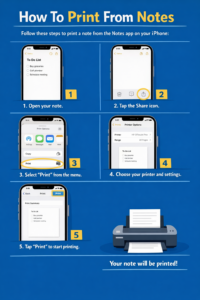
This guide walks you through the exact steps for both Windows and Mac, plus practical tips, troubleshooting, and common mistakes to avoid.
Why Print PowerPoint with Notes?
Printing slides with notes is useful when you need:
- A script or reference while presenting
- Handouts with explanations for your audience
- Study materials with both visuals and details
- Backup in case of technical issues
Instead of printing slides alone, notes give context—making your content easier to follow.
How to Print PowerPoint with Notes on Windows
Follow these steps if you’re using PowerPoint on Windows:
Step 1: Open Your Presentation
Launch PowerPoint and open the file you want to print.
Step 2: Go to Print Menu
Click File → Print, or press Ctrl + P.
Step 3: Select “Notes Pages”
Under Settings, find the layout dropdown (it may say “Full Page Slides” by default).
Click it and choose Notes Pages.
Step 4: Preview the Layout
Check the preview on the right. You should see:
- The slide at the top
- Notes text below
Step 5: Adjust Print Settings
Optional adjustments:
- Printer selection
- Number of copies
- Color (Color, Grayscale, or Black & White)
- Paper size
Step 6: Print
Click Print to start printing.
How to Print PowerPoint with Notes on Mac
The process on Mac is slightly different but just as easy:
Step 1: Open Your File
Open your PowerPoint presentation.
Step 2: Open Print Window
Click File → Print, or press Command + P.
Step 3: Show Detailed Options
If needed, click Show Details at the bottom of the print dialog.
Step 4: Choose Layout
In the layout dropdown, select Notes.
Step 5: Review Preview
Make sure the preview shows:
- Slide image
- Notes below
Step 6: Print
Click Print.
How to Print Multiple Slides with Notes (Smart Tips)
PowerPoint normally prints one slide per page when using notes. But here are ways to optimize:
Option 1: Adjust Notes Size
- Shorten your notes so they fit neatly
- Use smaller font size (10–12 pt recommended)
Option 2: Export to Word for Custom Layout
- Go to File → Export
- Select Create Handouts
- Choose layout with notes
- Open in Microsoft Word
- Arrange multiple slides per page manually
- Print from Word
This method gives you more control over layout and spacing.
Option 3: Use PDF and Print Settings
- Save as PDF
- Use your printer’s settings to fit multiple pages per sheet
Troubleshooting: When Notes Don’t Print Correctly
If your notes aren’t printing as expected, try these fixes:
Notes Not Showing
- Ensure you selected Notes Pages (Windows) or Notes (Mac)
- Check that notes are actually written in the Notes pane
Text Cut Off
- Reduce font size in notes
- Shorten long paragraphs
- Adjust margins in print settings
Formatting Looks Wrong
- Check slide size (Design → Slide Size)
- Avoid oversized images in slides
- Use standard fonts like Arial or Calibri
Printer Issues
- Restart printer
- Check ink levels
- Update printer drivers
Common Mistakes to Avoid
Avoid these errors to save time and paper:
1. Printing “Full Page Slides” Instead of Notes
This is the most common mistake. Always double-check the layout.
2. Overloading Notes with Text
Too much text can:
- Get cut off
- Be hard to read
Keep notes concise and readable.
3. Ignoring Print Preview
Always review before printing to avoid wasted pages.
4. Using Tiny Fonts
Small text may look fine on screen but becomes unreadable when printed.
5. Forgetting Page Orientation
Make sure your slides and notes fit properly on the page.
Best Practices for Clean, Readable Notes
Follow these tips for professional results:
- Use bullet points instead of long paragraphs
- Keep notes under 150–200 words per slide
- Use 11–14 pt font for readability
- Leave white space for easier reading
- Use grayscale if printing in bulk to save ink
FAQ: Printing PowerPoint with Notes
1. Can I print slides with notes on the same page?
Yes. Choose Notes Pages (Windows) or Notes (Mac). This prints one slide with its notes below it.
2. Can I print multiple slides with notes on one page?
Not directly in PowerPoint. You need to export to Word or adjust settings using PDF/printer options.
3. Why are my notes not printing?
You likely selected the wrong layout. Make sure Notes Pages is chosen and that notes exist in the Notes pane.
4. Can I edit notes before printing?
Yes. Use the Notes pane in Normal view or go to View → Notes Page for full editing.
5. How do I save slides with notes as a PDF?
Go to File → Save As or Export, choose PDF, and select Notes Pages in settings.
Conclusion
Printing PowerPoint with notes is straightforward once you select the correct layout. On both Windows and Mac, the key step is choosing Notes Pages (or Notes) in the print settings. From there, preview your layout, adjust formatting, and print confidently.
For better results, keep notes concise, always check preview, and use tools like Word or PDF if you need more flexible layouts. With these steps and tips, you’ll get clean, readable printouts every time.
