Introduction
If you present using Google Slides, having printed speaker notes can make your presentation much easier to deliver. Speaker notes allow you to include reminders, explanations, and talking points without displaying them to your audience.
how do you print speaker notes in google slides
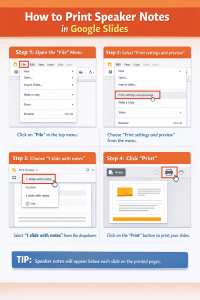
So how do you print speaker notes in Google Slides?
The process is simple: open your presentation, go to the print settings, choose the layout that includes speaker notes, and print the slides with the notes displayed underneath.
This guide walks you through exactly how to print speaker notes in Google Slides on Windows and Mac, along with troubleshooting tips, common mistakes to avoid, and helpful printing tips.
Understanding Speaker Notes in Google Slides
Before printing them, it’s helpful to understand how speaker notes work.
Speaker notes are private notes attached to each slide that only the presenter sees. They appear below the slide when editing the presentation.
Typical uses include:
Key talking points
Detailed explanations
Reminders for transitions
Statistics or quotes you want to reference
When printed properly, each slide appears at the top of the page with the notes printed below it.
Step-by-Step: How to Print Speaker Notes in Google Slides
Step 1: Open Your Presentation
Go to Google Slides
Open the presentation that contains your slides
Confirm that your notes appear in the Speaker Notes section below the slide
If you don’t see it:
Click View
Select Show Speaker Notes
Step 2: Open the Print Menu
Next, access the printing options.
Windows
Click File
Select Print settings and preview
A preview window will open
You can also press:
Ctrl + P
Mac
Click File
Choose Print settings and preview
Or press:
Command + P
Step 3: Select the “1 Slide With Notes” Layout
Inside the print preview window:
Find the Layout dropdown menu
Choose 1 Slide with Notes
This option prints:
The slide image at the top
Speaker notes below it
Step 4: Adjust Optional Print Settings
Before printing, you may want to customize the layout.
Options include:
Hide background graphics (saves ink)
Fit to page
Page orientation
Paper size
Review the preview to ensure the notes are clearly visible.
Step 5: Print the Presentation
Once everything looks correct:
Click Print
Select your printer
Confirm the settings
Click Print again
Your slides will now print with speaker notes underneath each slide.
Tips for Printing Multiple Slides With Notes
If your presentation has many slides, printing notes can quickly use a lot of paper. Here are some helpful tips.
Print Only Selected Slides
Instead of printing the entire presentation:
In the print dialog
Enter specific slide numbers
Example: 1–10
Save as PDF First
Many presenters prefer exporting notes first.
Steps:
Go to File
Select Print settings and preview
Choose 1 slide with notes
Click Download as PDF
This allows you to review formatting before printing.
Use Grayscale Printing
Speaker notes usually contain text only.
Printing in grayscale can reduce ink usage significantly.
Troubleshooting: Speaker Notes Not Printing
Sometimes the notes don’t appear correctly. Here are common solutions.
Problem: Speaker Notes Are Missing
Solution:
Make sure the correct layout is selected.
Check:
Print settings → Layout → 1 slide with notes
Problem: Notes Are Cut Off
This usually happens due to page scaling.
Fix:
Open printer settings
Enable Fit to page
Problem: Formatting Looks Wrong
Sometimes the preview looks fine but prints incorrectly.
Try this:
Export the slides as PDF with notes
Print the PDF instead
Problem: Notes Are Too Small
Long notes may shrink when printed.
Fix:
Shorten the notes
Break long paragraphs into bullet points
Common Mistakes When Printing Speaker Notes
Many users run into issues because of small errors.
Here are the most frequent ones.
Choosing the Wrong Layout
Selecting Full Page Slides instead of 1 Slide with Notes will remove the notes completely.
Always double-check the layout setting.
Not Checking Print Preview
Skipping preview can result in:
Cropped notes
Missing slides
Incorrect orientation
Always verify the preview first.
Overloading Notes With Text
Large blocks of text may print too small to read.
Better approach:
Use bullet points
Keep notes concise
Printing the Entire Deck by Accident
Large presentations can waste paper quickly.
Always confirm the slide range before printing.
FAQ
Can you print Google Slides with speaker notes?
Yes. Google Slides includes a built-in layout called “1 slide with notes” that prints the slide image along with the notes below it.
Why are my speaker notes not showing when printing?
This usually happens when the layout is set to Full Page Slides instead of 1 slide with notes in the print preview settings.
Can I print speaker notes without the slide image?
Google Slides does not currently offer a direct option to print only the notes. However, you can copy the notes into a document if needed.
How do I save Google Slides with notes as a PDF?
Open Print settings and preview, select 1 slide with notes, and then choose Download as PDF.
Can I print multiple slides with notes on one page?
Google Slides does not support printing several slides with notes on one page. Each slide with notes prints on its own page.
Conclusion
Printing speaker notes in Google Slides is a quick process once you know where the option is located. By opening Print settings and preview, selecting 1 slide with notes, and confirming your printer settings, you can easily create printed notes to guide your presentation.
These printed notes are especially useful for presenters who want a physical reference during meetings, lectures, or training sessions.
Before printing, remember to review the preview, choose the correct layout, and consider exporting to PDF for better formatting control.
With the steps in this guide, you should be able to print Google Slides speaker notes quickly and without errors.
