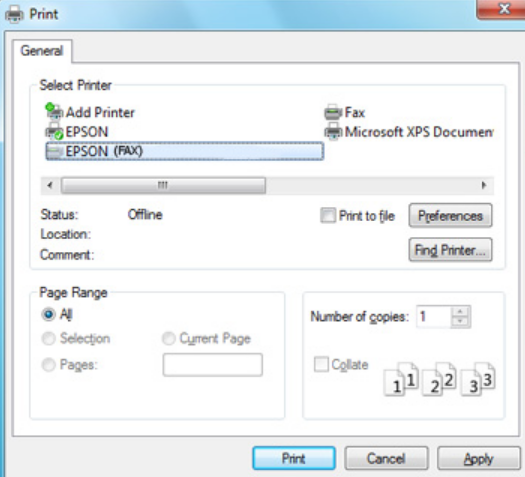
Using an Epson printer with fax functionality requires the correct driver and utility software to ensure smooth communication between your computer and the printer. The Epson Printer Driver for Fax Utility helps users send documents by fax directly from a computer, manage fax settings, and use supported fax features efficiently.
If the fax function is not working correctly, the problem may be caused by an outdated driver, incorrect software installation, or compatibility issues. This guide explains what the Epson printer fax driver does, how to install it, and how to troubleshoot common problems.
What Is the Epson Printer Driver for Fax Utility?
The Epson printer driver for fax utility is software that allows your computer to communicate with an Epson multifunction printer that supports fax features. The driver acts as a connection between the operating system and the printer’s fax hardware.
Depending on the Epson model, the software may allow you to:
- Send documents directly from your computer
- Select fax recipients
- Configure fax settings
- Manage printer and fax preferences
- Monitor fax jobs
- Print or scan documents before sending them
- Use Windows applications to send documents through the fax function
The available features may vary depending on the printer model and operating system.
Why Do You Need the Correct Epson Fax Driver?
Installing the correct driver is important because each Epson printer model may require different software. Using an incompatible driver can result in connection problems, missing fax features, or printing errors.
A correct Epson fax driver can help provide:
- Better compatibility with Windows
- Proper communication between the computer and printer
- Access to fax-related functions
- Improved stability
- Support for compatible operating system versions
- Easier configuration of printer and fax settings
If the fax utility is missing after installing a printer, you may need to install additional Epson software separately.
How to Download the Epson Printer Fax Utility
Before downloading any driver or utility, identify your exact Epson printer model. The model name is usually printed on the front or top of the printer.
Follow these general steps:
- Identify your Epson printer model.
- Check the operating system installed on your computer.
- Find the correct Epson printer driver and fax utility for your model.
- Download the compatible software package.
- Check the system requirements before installation.
- Save the installer to your computer.
Always make sure that the driver matches both your printer model and operating system. Installing software intended for another printer model may prevent the fax utility from working correctly.
How to Install the Epson Printer Driver for Fax Utility
After downloading the correct software, you can begin the installation process.
Step 1: Prepare the Printer
Turn on your Epson printer and make sure it is connected to your computer or network. If you are using a USB connection, check that the cable is securely connected.
For a network printer, make sure the computer and printer are connected to the same network.
Step 2: Run the Installation File
Locate the downloaded driver or utility installer and double-click the file. If Windows displays a security confirmation, review the information and continue if the installer is from a trusted source.
Step 3: Follow the Setup Instructions
The installation wizard will guide you through the setup process. You may be asked to:
- Accept the software license agreement
- Choose an installation location
- Select a connection type
- Connect or detect the printer
- Install the fax utility
Follow the instructions shown on the screen.
Step 4: Connect the Printer
If the installation program asks you to connect the printer, connect it using a USB cable or select the correct network printer.
The software should detect the printer automatically if the connection is working correctly.
Step 5: Complete the Installation
Wait until the installation is finished. You may need to restart your computer before using the fax utility.
After restarting, check whether the Epson printer and fax software are available.
How to Use the Epson Fax Utility
Once the driver and utility are installed, you may be able to send a fax directly from a supported application.
A general process may include:
- Open the document you want to send.
- Select the print option.
- Choose the Epson fax printer or fax function.
- Enter the recipient’s fax number.
- Review the fax settings.
- Send the document.
The exact steps may vary depending on the Epson printer model and installed software.
Common Epson Fax Driver Problems
Sometimes the fax utility may not work as expected. Several common issues can affect the software.
Epson Fax Utility Is Not Detected
If the fax utility is not detected, the required software may not be installed correctly. Try reinstalling the printer driver and any additional fax software included for your Epson model.
You should also check whether the printer is connected and powered on.
Epson Printer Driver Is Unavailable
A driver may become unavailable after a Windows update or when the existing driver becomes corrupted.
To fix the problem, try these steps:
- Restart the computer and printer
- Disconnect and reconnect the printer
- Remove the old printer driver
- Install a compatible Epson driver
- Check for operating system compatibility
Installing a fresh driver can often restore communication between the printer and computer.
Fax Function Does Not Work
If printing works but faxing does not, the problem may be related to the fax configuration rather than the printer driver.
Check the following:
- The telephone line connection
- Fax settings
- Recipient fax number
- Printer fax configuration
- Any required fax utility software
If your printer uses a network-based fax feature, also verify the network connection.
Epson Printer Is Not Recognized
When Windows cannot recognize the printer, check the connection method. For USB printers, try another USB port or cable if available.
For wireless printers, make sure the printer and computer are connected to the same network.
You can also restart both devices and try adding the printer again.
How to Update the Epson Fax Driver
Updating the driver may improve compatibility and resolve problems caused by outdated software.
Before updating, check your printer model and operating system. Download the appropriate driver package and install it over the existing version if supported.
If the current installation is damaged, it may be better to uninstall the old driver first and perform a clean installation.
Uninstalling an Old Epson Printer Driver
An outdated or damaged driver can sometimes interfere with a new installation. Removing the old software may help resolve installation problems.
On Windows, you can generally remove the printer through the system’s printer settings and uninstall related Epson software from the installed applications list.
After removing the old software, restart the computer and install the correct driver again.
Epson Fax Utility Compatibility
Compatibility depends on several factors, including:
- Epson printer model
- Windows version
- macOS version
- Connection type
- Available Epson software
- Printer firmware
Before installing a driver, always check whether the software supports your operating system. Some older Epson printers may not have official drivers for newer operating systems.
Tips for a Successful Installation
To avoid common installation problems, follow these tips:
- Confirm the exact printer model before downloading software.
- Use a driver compatible with your operating system.
- Keep the printer turned on during installation.
- Avoid disconnecting the printer while setup is running.
- Restart the computer after installation if required.
- Remove incompatible or outdated drivers when necessary.
- Check the printer connection before using the fax utility.
These simple steps can help prevent many common driver and fax software issues.
Frequently Asked Questions
What is the Epson Printer Driver for Fax Utility?
It is software that allows a compatible computer and Epson multifunction printer to communicate and use supported fax features.
Why is my Epson fax utility not working?
The problem may be caused by an outdated driver, incorrect software, connection problems, or incorrect fax settings.
Do all Epson printers support fax?
No. Fax functionality is only available on supported Epson multifunction printer models.
Can I install an Epson fax driver on any Epson printer?
No. The driver must match the exact printer model and compatible operating system.
Do I need to restart my computer after installing the driver?
Some installations require a restart to complete the setup and activate the new driver correctly.
Conclusion
The Epson Printer Driver for Fax Utility is essential for using fax-related features on compatible Epson multifunction printers. Installing the correct driver helps your computer communicate properly with the printer and provides access to supported fax functions.
If the fax utility is not working, start by checking the printer model, operating system compatibility, connection, and installed software. Reinstalling or updating the correct Epson driver can often resolve common problems and restore normal fax functionality.
