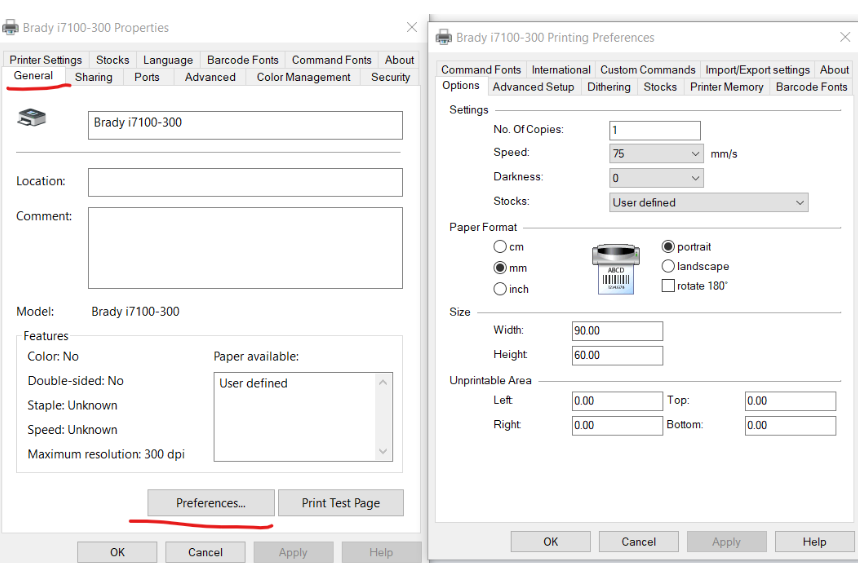
An advanced printer driver is software designed to help a computer communicate with a printer while providing additional features and configuration options. Compared with basic printer software, an advanced printer driver may offer more control over print quality, paper settings, color management, device functions, and other printing preferences.
Whether you use a printer at home, in an office, or in a professional environment, installing the correct printer driver is important for achieving reliable performance. This guide explains what an advanced printer driver is, why it is useful, how to install one, and how to solve common driver problems.
What Is an Advanced Printer Driver?
A printer driver is software that allows an operating system to communicate with a printer. An advanced printer driver provides additional features beyond basic printing support.
Depending on the printer model and manufacturer, advanced driver features may include:
- Advanced print quality settings
- Custom paper size selection
- Color management
- Duplex printing
- Multiple-page printing
- Toner or ink monitoring
- Printer maintenance tools
- Network configuration
- Finishing options
The available features depend on the printer model and the driver software provided by the manufacturer.
Why Use an Advanced Printer Driver?
A basic driver may be enough for simple document printing. However, an advanced driver can provide more control over the printing process.
Some benefits include:
Better Print Control
Advanced settings allow users to adjust print quality, paper type, resolution, and other options according to their needs.
Access to Additional Features
Some printer features may not be available when using a basic operating system driver. Installing the manufacturer’s advanced driver may unlock additional functions.
Improved Compatibility
A driver designed specifically for a printer can help improve communication between the operating system and the device.
Better Network Printing
Advanced drivers may provide additional options for configuring printers connected through a network.
Types of Advanced Printer Drivers
Different manufacturers use different driver technologies. Some common types include:
Manufacturer-Specific Drivers
These drivers are created specifically for a printer model or printer series. They usually provide the most complete feature support.
Universal Printer Drivers
A universal printer driver can support multiple printer models from the same manufacturer. It may be useful in offices with several compatible printers.
PostScript Drivers
PostScript drivers are often used in professional printing environments and can provide advanced control over document output.
PCL Drivers
PCL drivers are commonly used for office printers and can offer reliable performance for everyday business documents.
How to Choose the Right Advanced Printer Driver
Before downloading a driver, check the following information:
- Printer manufacturer
- Exact printer model
- Operating system
- Operating system version
- 32-bit or 64-bit architecture when applicable
- Connection type
Choosing the correct driver is important because an incompatible driver may cause installation errors or printing problems.
How to Download an Advanced Printer Driver
The general download process is simple:
- Identify your printer model.
- Visit the printer manufacturer’s official support website.
- Search for your printer.
- Open the drivers or software section.
- Select your operating system.
- Review the available driver options.
- Download the compatible advanced printer driver.
Always choose software that matches your exact printer model whenever possible.
How to Install an Advanced Printer Driver on Windows
After downloading the driver, follow these general steps:
Step 1: Download the Driver
Save the driver installation file to your computer.
Step 2: Extract the Files
If the downloaded file is compressed, extract the contents to a folder.
Step 3: Run the Setup Program
Open the setup file and follow the instructions displayed on the screen.
Step 4: Select the Connection Type
The installation program may ask you to choose between USB, wireless, or network installation.
Select the option that matches your printer setup.
Step 5: Connect the Printer
Connect the printer when the installation program instructs you to do so.
Step 6: Complete the Installation
Follow the remaining instructions until the installation is complete.
Step 7: Test the Printer
Print a test document to confirm that the advanced printer driver is working correctly.
How to Install an Advanced Printer Driver on macOS
Mac users can install compatible printer software by following these general steps:
- Download the driver designed for your printer and macOS version.
- Open the downloaded installation package.
- Follow the installation instructions.
- Open Printers & Scanners in macOS settings.
- Add the printer if it is not automatically detected.
- Select the appropriate driver if required.
- Print a test document.
The installation process can vary depending on the printer manufacturer and macOS version.
Advanced Printer Driver Features
An advanced printer driver may provide several useful options.
Print Quality Settings
Users can often select different quality levels depending on the document. Draft mode may save ink or toner, while higher-quality settings can improve the appearance of important documents.
Paper Selection
Advanced drivers may allow users to choose different paper sizes and types, such as:
- A4
- Letter
- Legal
- Envelopes
- Photo paper
- Cardstock
Duplex Printing
If supported by the printer, duplex printing allows users to print on both sides of a sheet of paper.
Color Management
Color printers may provide advanced options for adjusting color output and print quality.
Multiple-Page Printing
Users may be able to print multiple pages on a single sheet of paper, helping reduce paper usage.
Common Advanced Printer Driver Problems
The Driver Will Not Install
If installation fails, check whether the driver matches your operating system and printer model.
You can also remove older printer software before attempting a new installation.
The Printer Is Not Detected
Check the USB, Wi-Fi, or network connection. Make sure the printer is turned on and connected correctly.
Advanced Features Are Missing
If advanced settings are not available, you may be using a basic operating system driver instead of the manufacturer’s full driver package.
The Printer Is Offline
Check the printer connection and restart the printer. For network printers, confirm that the computer and printer are connected to the correct network.
Print Quality Is Poor
Check the print quality settings in the driver. You may also need to perform printer maintenance, replace ink or toner, or use the correct paper type.
How to Update an Advanced Printer Driver
Updating the printer driver can help maintain compatibility with operating system updates and improve performance.
To update a driver:
- Identify the printer model.
- Check the operating system version.
- Visit the manufacturer’s support website.
- Download the latest compatible driver.
- Install the updated software.
- Restart the computer if required.
- Test the printer.
Before installing an update, read the manufacturer’s instructions carefully.
How to Uninstall an Old Printer Driver
If an old driver is causing problems, removing it may help.
The general process is:
- Open your computer’s printer settings.
- Remove the printer from the device list.
- Open installed applications or printer management settings.
- Uninstall the old driver software.
- Restart the computer.
- Install the correct advanced printer driver.
The exact steps may vary depending on the operating system.
Tips for Using an Advanced Printer Driver
For the best results:
- Use a driver designed for your exact printer model.
- Check operating system compatibility.
- Download software from a trusted manufacturer source.
- Keep the driver updated when necessary.
- Select the correct paper type.
- Use the appropriate print quality setting.
- Check printer connections regularly.
- Remove outdated drivers if they cause conflicts.
Frequently Asked Questions
What is an advanced printer driver?
An advanced printer driver is software that provides communication between a computer and printer while offering additional settings and features beyond basic printing.
Is an advanced printer driver better than a basic driver?
An advanced driver may provide more features and better control, especially when using specialized printer functions. However, the best driver depends on the printer model and operating system.
Where can I download an advanced printer driver?
You should download the driver from the official support website of your printer manufacturer.
Why are some printer settings missing?
Missing settings may indicate that a basic or generic driver is installed. Installing the manufacturer’s full driver package may provide additional features.
Can I use an advanced printer driver with any printer?
No. Printer drivers are designed for specific printer models or compatible printer series. Always check compatibility before installation.
Should I update my printer driver?
Updating a printer driver may be helpful when you experience compatibility problems or when a newer operating system version is installed.
Conclusion
An advanced printer driver can provide more control, better compatibility, and additional features compared with a basic printer driver. Depending on the printer model, users may gain access to advanced print quality settings, paper options, duplex printing, color management, network features, and maintenance tools.
Before downloading and installing an advanced printer driver, check your exact printer model and operating system. Choosing compatible software from a trusted manufacturer source can help ensure reliable performance and access to the printer’s available features.
